 MouseTools
← Back to the desktop
MouseTools
← Back to the desktop
Changelog
What each release changed. Newest first.
1.0.0
First public releaseCompass & Clipboard, formerly Mouse Tools, puts a mouse in the menu bar and a Compass under the Scroll Wheel Button: drawing, capture, clipboard and pointer effects in one menu-bar app. No account, no analytics, no background uploads; the network is used only when you ask.
Compass
- A ring menu around the pointer. Press the scroll wheel and hold it a second, or pull in any direction, and it is there; a short click stays with the app, four quick clicks pause Compass & Clipboard. The modifier variants live in Settings → General.
- Three rings: the wedges, a variants ring and a size ring. Switches on each wedge, the shortcut printed under each title, and the ring answers the keyboard.
- Settings → Compass shows the real disc, zoomable from 100 to 250 percent. Drag a seam to trade width between two wedges, drag a wedge's glyph and words where they read best, reorder by drag, and add tools or apps from a picker with categories and search.
- Ten looks — Neon Night, Brushed Steel, Clay Pastel, Hologram, Paper, Terminal, Sunset, Blueprint, Candy, Aurora — beside the original and looks you save yourself. Behind them the free knobs: wedge shape, hub shape, material, edge glow, aura, and how far and how fast a wedge lifts under the pointer.
- Arrange Windows: halves, quarters, thirds and fit for the front window, per display, and a hop to the other display. Switch Apps fills a wedge with the running apps. System Monitor shows CPU, memory and free disk on the ring and opens Activity Monitor. Arrange Windows is Pro: the App Store sandbox blocks the Accessibility API.
- Stays out of the apps you list and pauses in games. A shake of the pointer pulses the ring so you find it.
- A guided first-use walkthrough. About › Guide opens the website tutorial and FAQ.
Drawing and annotation
- Pen, line, arrow, ellipse, rectangle, cross, check and text on any window, with width, colour and dash styles, fade and live coordinates.
- A text editor on every text, an eraser, undo, right-click menus on annotations, and a bare Escape to clear. Backspace stays with an open text box.
Capture and recording
- Region, Full Screen and Window screenshots; a capture frame that starts where the Compass was opened, 800 × 800 px when fresh; screen and audio recording with discard. The Compass and the Capture pill stay out of its own picture; the ring, trail and spotlight stay in it while the Effects switch is on.
- Formats in Settings → Capture: PNG, JPEG or HEIC; MOV or MP4 in H.264 or HEVC at native, 75 or 50 percent, 60 or 30 fps; AAC or PCM audio.
- Every capture lands as a file in the clipboard folder the moment it happens, and on the clipboard as that file. A save that fails is announced at once. Remember captures keeps up to 40 in the menu-bar menu.
- Recording mode: one switch for ring, trail and click pulse. Spotlight dims every screen but a circle around the pointer.
Clipboard
- A speech bubble under the menu bar with preview cards for your copies, newest on top, with no limit on how many it keeps: a glimpse for pictures, a pin to keep one, a shelf for parked items, a save folder per kind.
- The paste stack: copy several things with ⌘C, press ⌘V once and they arrive in the order they were copied; pictures and files stack as real files. Off in Settings → Compass & Clipboard → Clipboard.
- Drag rows out as real files into browsers and messengers; double-click to open or reveal in Finder; share, remove one or clear the lot.
- The clipboard home resizes and moves freely. Its foot holds Settings and Quit; everything else is a right-click on the menu-bar icon away.
Pointer and cursor
- A highlight ring, a click pulse, a spotlight, and three trail layers with their own style, colour, thickness, length and particle size. Heat runs blue at a crawl and red at a flick. The ring ripples while you type; Show coordinates, in Settings → General or on the menu-bar menu, puts x and y beside the pointer, counted from the bottom-left corner of its screen, with or without the ring.
- Eight cursor skins with a size slider, your own PNGs and Windows .cur and .ani import; a hotkey flips between 1× and 2×; skins survive sleep, display changes and login. Pro.
- Every surface colour can loop through the hue wheel every 2 to 60 seconds, or follow the Mac's own sound — loudness swells the stroke, the balance of low and high tints it. Off until you switch it on.
- Recordings and screen shares see the ring, trail, spotlight, drawings and the Compass unless you switch them off; the clipboard bubble stays hidden from them unless you switch it on. Both switches sit on the Mouse page and on a pill — On air in Recording mode and while Compass & Clipboard records, Capture while a shot is framed, plus a third button for the pointer's coordinates; the pill itself is never shared.
Automation and input
- The Mac clicks, stays awake, nudges the cursor and repeats what you did. Escape stops all of it, always. A recorded trackpad flick replays as the same flick. Pro.
- Macros: paste text, press a shortcut, open an app or a page, run a command, wait — a wedge per macro on the ring, edited or deleted from the wedge's context menu. Pro.
- Three fingers tapped on the trackpad open the Compass, with thresholds measured from a real hand; one notch of the wheel glides instead of jumping. Pro.
- Stay Out: per-app and game pauses, with a pause sign in the menu bar.
Settings and theme
- Settings opens fullscreen in its own Space; Esc, ⌃⌘F or the green button leave it, ⌘W closes it. Pages run in the order they are used, with tabs that remember themselves.
- Every page carries a wash of its tab's colour, with a dial for how strong and a colour of your own if you want one. Controls sit beside a moving picture — the Compass, the pointer, the capture mock, a keyboard — drawn straight on the wash.
- Every change answers: a one-line receipt at the foot of the pane with Undo on it, a nod beside the section heading, and buttons that say Copied or Applied on themselves.
- Appearance — follow the Mac, light, dark — accent and glass; Compass and clipboard colours with a live preview; shortcuts anyone can record, and one-hand presets for QWERTY and QWERTZ.
- A permissions coach that names the switch and survives a cold-launched System Settings. Report a Problem writes a mail with version, system and permission state, sent only by you.
- AI Handoff: connect your own provider — an API key kept in the Keychain, or a CLI on your Mac — and hand captures and clipboard entries to a chat, each time by your own action. Pro.
- About links the EULA, Terms, Privacy and Imprint. The Store copy opens About › Guide on this website.
Input Monitor
- Copies, pastes, captures, recordings, ring opens, macro replays, clicks, keystrokes and dictations — counted on your Mac and kept there. A band in the clipboard home for this week and last; a full page with day, week, month and year, stat tiles, a stacked timeline, a donut of copy kinds, a Hands at Work card, a Milestones card whose All 87 button lists them all by kind, and a reset for every count. Off in Settings → Clipboard.
Housekeeping
- The Mac App Store copy is €9.99, one SKU. A later Pro plugin is €4.99 as a website installer, not a second Store product.
- The icon is the golden ring with a cursor on dark glass; the Store edition uses the Mac's own pointer.
- No account, no analytics, no background uploads. The network is used only when you ask — Check for Updates, opening help and legal pages.
Before and after
Two details from the Golden Gate pass — drag the divider.
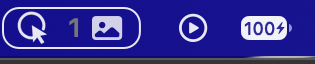
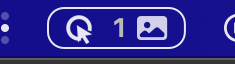
The menu-bar mark: stroked outline → filled silhouette
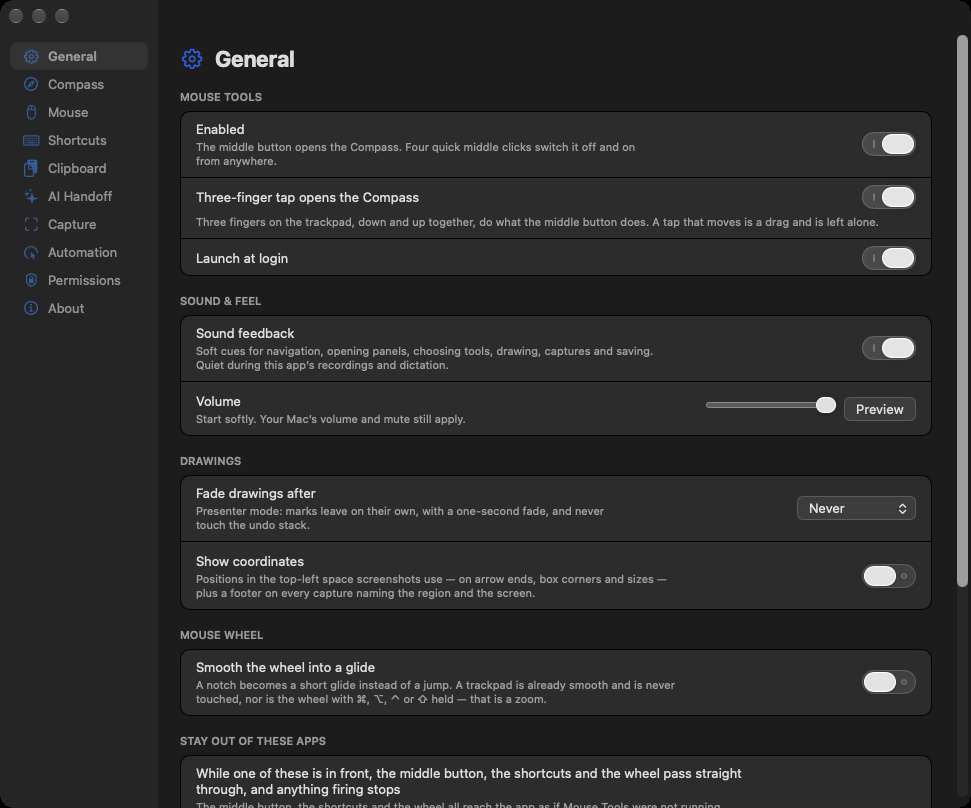
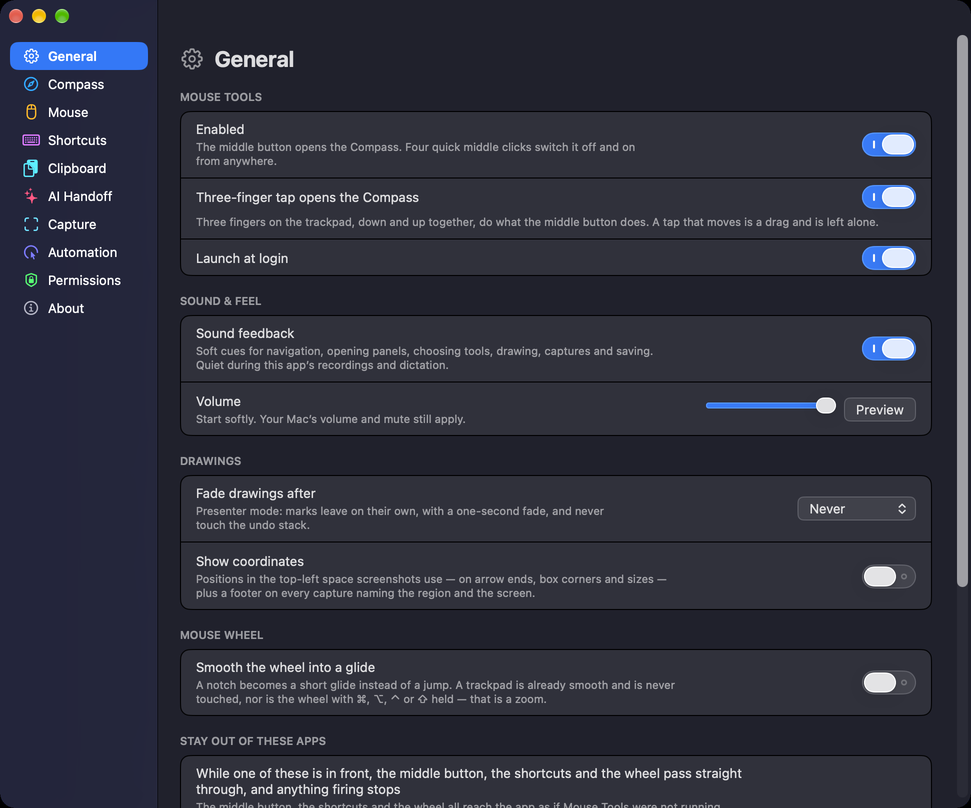
Settings pages: one blue for everything → every page its own colour
Origins — August 2026
Started 20 August 2026 as “Middle Mouse Tools”: the radial work menu, the permissions and capture groundwork, the first clipboard tray and the signing setup that keeps Accessibility and Input Monitoring approvals across rebuilds. Renamed to Mouse Tools on 10 September 2026, named 1.0.0 on 12 September 2026. It took the name Compass & Clipboard for its first public release, when MouseTools became the home for both apps.